
How to Use the URL Inspection Tool in Google Search Console: The "Check My Work" Button
There is a highly specific, cold-sweat moment that every business owner experiences at least once.
You open your website on a Tuesday morning and spot a glaring, humiliating typo on your homepage. Perhaps you wrote that your services cost £5,000 instead of £500, or maybe your phone number has a digit missing, or your main headline has a spelling mistake that makes you look like you rushed the job.
Your heart jumps into your throat. You open your website builder, frantically delete the typo, type in the correct information, and hit "Save."
You load your live website. The typo is gone. You breathe a massive sigh of relief, lean back in your chair, and take a sip of your coffee. The crisis is averted.
But then, out of curiosity, you type your business name into Google.
There, sitting on page one for the entire world to see, is your website listing. And right there in the short snippet of text below your link is the exact, humiliating typo you thought you had just killed. You click the link, and your website loads perfectly with the correct spelling. But on Google's search results page, the old, broken version remains, stubbornly refusing to budge.
You refresh the page. You clear your internet browser's history. You search on your phone. The typo is still there, mocking you from the search results.
This is the point where most people feel entirely helpless. You’ve fixed the problem on your own property, but you have no idea how to reach inside Google's search results and fix it there. It feels like your updates have been locked in a safe, and you don’t have the combination.
Fortunately, you do.
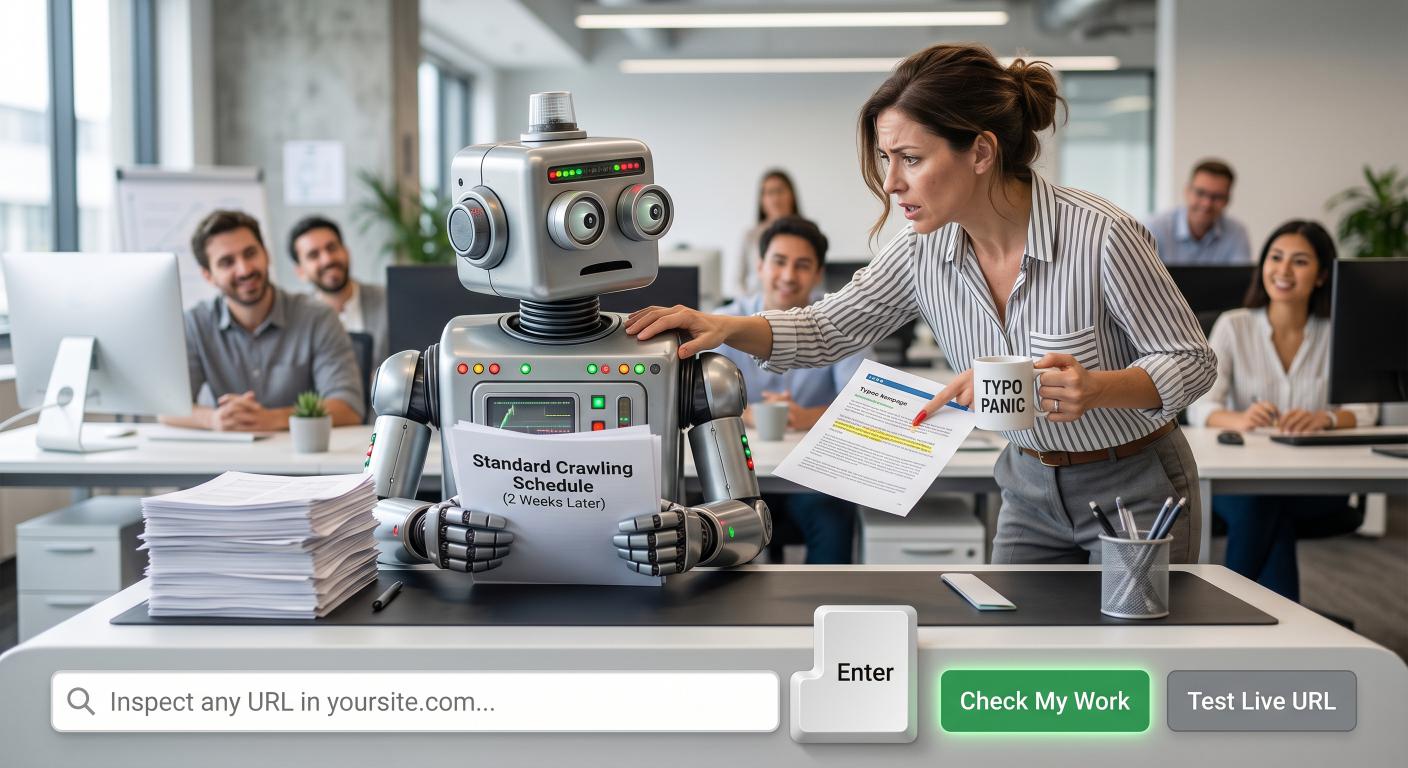
At the very top of your Google Search Console dashboard sits a giant, blank white search bar that most people walk right past. It doesn't look like much, but it is the single most powerful diagnostic tool on the platform. It is called the URL Inspection Tool, but you can think of it as the digital equivalent of a "Check My Work" button.
Let’s open up this tool together, understand the difference between what Google remembers versus what is happening right now, and learn how to tap Google on the shoulder to see your updates in a matter of hours instead of weeks.
What is the URL Inspection Tool? (The Teacher's Desk Analogy)
To understand how this tool works, it helps to cast your mind back to your school days.
Imagine you are sitting in a large, quiet classroom. You’ve spent the last hour writing an essay, and you finally write the final paragraph. If you sit quietly at your desk in the back of the room, you might have to wait twenty or thirty minutes for the teacher to slowly walk down the aisles, look over your shoulder, and grade your paper.
But if you are in a rush, or if you’ve made a massive correction that you want graded immediately, you don't stay in your seat. You stand up, walk directly to the front of the classroom, tap the teacher on the shoulder, and hand them your paper. You ask them to look at it right now.
That is exactly what the URL Inspection Tool does.
Normally, Google's crawling bots wander around your website on their own slow schedule. If you have a small, quiet website, they might only visit you once every two weeks. If you make a change to a page, those changes will remain invisible to searchers until the bot naturally wanders back to your site.
The URL Inspection Tool is your way of standing up, walking to the front of the classroom, and saying: "Excuse me, I have updated this specific page. Please stop what you are doing and look at it now."
How to Check If Your Page is Actually on Google
Using the tool is incredibly simple. When you log into Google Search Console, you will see a long search bar at the very top of your screen that says "Inspect any URL in..." followed by your domain name.
To begin checking a page, follow these steps:
Copy the complete web address of the page you want to inspect from your browser bar (for example: https://yoursite.com/about-us).
Paste that link directly into the search bar at the top of Search Console.
Press the Enter key on your keyboard.
Google will take a few seconds to query its master library, and then it will present you with a detailed report card for that specific link.
At the top of this report, you will see a status message accompanied by a colored icon. While most people only look for green, Google actually uses three distinct status colors:
| Status Icon Color | Google's Label | What it Actually Means |
|---|---|---|
| Green Tick | URL is on Google | Everything is perfect. Google has visited, approved of your page, and placed it safely on the library shelves. Your page is active and can show up in search results. |
| Yellow / Orange Warning | URL is on Google, but has issues | The page is live, but it has problems. Google has indexed the text, but they have spotted errors like broken mobile usability elements or invalid schema code that need fixing. |
| Grey Warning | URL is not on Google | The page is missing from the index. Google has not placed this page into its public library yet, usually because it’s a draft, a duplicate, or blocked by a setting. |
If you see a grey warning, don’t panic. It does not mean your website is broken, and it doesn't mean you are in trouble. Beneath the warning, the tool will display a section labeled "Page indexing" or "Availability" which will explain exactly why the page is missing (for example, it might say "Discovered - currently not indexed" or "Excluded by noindex tag," both of which we have demystified in previous articles).
The Golden Distinction: "Indexed" vs. "Live Test"
This is the stage where almost every beginner gets incredibly confused. You paste your link, look at the screen, and see all green ticks. But when you look at the text preview, you notice it is still showing your old, broken layout with the humiliating typo.
Why is Google claiming everything is fine when the page clearly isn't updated?
It happens because the default URL Inspection screen is showing you a historical snapshot, not a live broadcast.
When you first inspect a URL, Google shows you the data it has stored in its memory from the very last time its bots crawled your page—which might have been ten days ago. It is showing you the past.
To see what is happening at this exact second, you have to look in the top right-hand corner of your screen and find a light grey button that says "Test Live URL."
When you click this button, Google's bot actively drops what it is doing, runs over to your website in real-time, loads the page, and analyzes it on the spot. This live test takes about a minute to run, but it is incredibly valuable because it tells you:
Whether the page can be indexed right now: It checks if your current website settings are blocking Google today, regardless of what happened last week.
Whether your mobile layout is working: It tests if your live page is comfortable to read and use on a phone at this exact second.
Exactly what the bot sees: You can click "View Tested Page" to see the actual HTML code and a screenshot of how Google's automated systems render your images and text.
Always remember: If you have recently made changes to a page, the default inspection screen will show you the old version. You must click "Test Live URL" to see if your fixes actually worked.
The Hidden Gem: "View Crawled Page"
Before you rush to click the live test button, take a close look at the default historical snapshot screen. Hidden in the details is a small option labeled "View Crawled Page".
This is a developer’s secret weapon, but you don't need to be a developer to use it. When you click this button, a side panel opens up on your screen showing three tabs: HTML, Screenshot, and More Info.
The HTML Tab (The Written Proof): This tab displays the exact code and text that Google’s bot captured and brought back to its archives during its very last visit. If a client is claiming your website didn't have a certain disclaimer, or if you want to prove exactly what Google saw on a specific Tuesday afternoon, this raw code is where the proof lives.
The Screenshot Tab: This shows you exactly how Google’s bot rendered your images and design. Sometimes, a page looks beautiful to you, but when you look at this tab, you see a scrambled mess of overlapping text. It’s your way of knowing that Google is struggling to read your layout.
How to Ask Google to Index Your Updates
Once you have run your live test and verified that your page is clean, correct, and free of typos, it is time to ask Google to update its public search results.
On both the default inspection screen and the live test screen, you will see a link that says "Request Indexing."
To update your listing, follow these quick steps:
Verify your live page is working perfectly by clicking "Test Live URL" first.
Click the "Request Indexing" link.
Wait for the system to process. A small pop-up box will appear saying "Submitting request."
Click "Dismiss" once the success message appears.
Managing Expectations: The Pipeline Delay
By clicking this button, you have successfully submitted your updated page to a priority crawling queue. Their bots will usually run over and crawl your updated page within a few minutes or hours.
However, do not expect your search results to change instantly.
While the bot reads the new page within minutes of you clicking the button, that data still has to travel through Google's massive processing systems to actually overwrite your old listing on the public search results page. This process usually takes a few hours, and occasionally a day or two. If you inspect your URL and still see the typo in search results ten minutes later, don't panic. Give the system until the next morning to process the update.
Decoding Common URL Inspection Errors
Sometimes, when you inspect a link or run a live test, Google will return a red error message. These technical alerts can look incredibly intimidating, but they usually boil down to very simple real-world issues.
Here is how to translate Google's warning labels into plain, actionable steps:
"Crawl allowed? No: blocked by robots.txt": You have accidentally locked your front gate. This error means your website has a file (the robots.txt file we discussed in our sitemap article) that is explicitly telling search engines they are not allowed to enter this page. To fix this: Open your website settings or SEO plugin and remove any rules that are blocking search bots from accessing this specific web address.
"Indexing allowed? No: 'noindex' detected": You have hung a "Do Not Disturb" sign on your door. This means the code of your page contains a hidden setting called a "noindex" tag. You might have toggled this setting on while building the page so nobody could see your rough draft, but forgot to turn it off when you published. To fix this: Open your page settings inside WordPress, Shopify, or Squarespace, and uncheck the box that says "Hide this page from search engines."
"Page cannot be reached (HTTP error)": Your website took an unexpected nap. This usually means your hosting server was temporarily offline, or your website was loading so slowly that Google's bot gave up and assumed your site was broken. To fix this: Check with your hosting provider to ensure your server is running smoothly, and compress any heavy images that might be slowing your page loading speeds to a crawl.
"User-declared canonical different from Google-selected": Google thinks your page has a double. As we covered in our canonical tag guide, this means Google found another page on your site that looks almost identical to this one, and decided to show the other version instead. To fix this: Either rewrite the page to make its value completely unique, or update your canonical settings to point to the correct, original version.
Protect Your Precious Daily Quota
The "Request Indexing" button feels like a cheat code. Once you realize you can ask Google to look at your website whenever you want, it is incredibly tempting to use it constantly.
You find yourself clicking it every time you edit a comma, upload a new photo, or tweak a color on your background.
But Google has to limit the strain on its servers, so they have put strict daily quotas on how many times you can request indexing.
While they don't publish the exact number, most business owners find they get locked out after about 10 to 15 manual requests per day. If you hit that limit, the button will lock you out, and you will have to wait 24 hours to ask for another review.
Because of this, you should manage your daily allowance carefully:
Save manual requests for genuine emergencies: If you have just fixed a major pricing error, updated a broken phone number on your contact page, or launched an incredibly important new landing page, use the button. If you just changed a single letter in a footer link or fixed a minor typo in a blog post, play it cool. Let Google's bots find those tiny updates on their own schedule.
Use your sitemap for bulk updates: If you have updated 50 product pages or launched a massive new blog section, do not inspect those links manually. You will run out of quota in minutes. Instead, simply submit your updated XML sitemap directly in the "Sitemaps" tab. It tells Google, "Hey, I updated a lot of content, please check it out whenever you can," without burning through your precious daily manual allowance.
Trust Your Website, But Know When to Push the Button
Managing a website can often feel like working in the dark. You save your changes, close your browser, and just hope that the massive search engines are noticing your efforts.
The URL Inspection Tool is your window into that darkness.
It is the only place on the internet where you can see exactly what Google’s bots saw the last time they visited, and it is your direct line to the technical team at headquarters when you need to make a correction.
By checking your pages occasionally, testing your live URLs, and requesting indexing when you make major updates, you stop being a passive observer of your website's search presence. You become an active coordinator.
So the next time you spot a typo, don’t panic, and don’t assume you are powerless. Fix it on your site, paste the link into that white search bar at the top of your dashboard, run a live test, and get your business looking exactly the way it should.
More Search Analytics Help
If this was useful, there is plenty more in our Search Analytics section. We translate the reports into ordinary English, because a dashboard is only helpful when it leads to a sensible decision.
These three will help you carry on:
Why We Write About Search Analytics
We write about Search Analytics because the numbers tell us whether a website is actually being found and whether the right people are choosing to visit it. When we build your website, we put the search foundations in place and make sure its important pages can be discovered and understood.
If you choose our ongoing website management, we keep watch after launch. We check Search Console, indexing, sitemaps and search performance, investigate warnings, update the content and fix the website when the reports point to a real problem. You get the benefit of the information without being expected to make dashboard-watching a hobby.
Prefer Us to Watch the Numbers?
Tell us what the website needs to achieve. We can build it with the search foundations in place and keep looking after the content, performance and technical details once it is live.
What does the URL Inspection tool tell me?
It shows whether Google knows about a URL, which version it treats as canonical, when it was last crawled and whether indexing or page resources have caused problems.
Does requesting indexing guarantee that a page will appear in Google?
No. It asks Google to recrawl the page, but Google still decides whether and when to index it. The page must be accessible, useful and supported by consistent site signals.
Which address should I inspect in Search Console?
Inspect the complete canonical URL you want people and Google to use, including the correct HTTPS version, hostname and final path. Small differences can refer to different addresses.